Wednesday, August 19, 2009

ThinkPad T400

Today I got my "new" Lenovo ThinkPad T400 as part of a hardware upgrade program from Accenture. Every 3 years (in my case, 2,5) Accenture upgrades our notebooks, since, of course, they get aged somewhat fast after intense use. And, in my case, they also get outdated because customers like cutting-edge technology, and cutting-edge technology needs cutting edge hardware to be developed upon.

So, I got this business oriented Lenovo ThinkPad T400. And I've decided to blog about it, because I'm tired of complaining to the walls (or to my girlfriend). Considering just the hardware, this notebook is top value. Good HD (160GB 7400RPM), nice RAM (3GB), the case seems sturdy, and the battery life is amazing. Besides that, the screen has a cool lamp that lights the keyboard, in case you have to type in complete darkness and can't find the keys. Cool, but not sure if it's useful.

Now, for the rant. The keyboard plainly sucks. I have no better term so, sorry purists, but this is it: the keyboard sucks. Every key that isn't the default QWERTY has a terrible placement. Lenovo has put a lot of work into making this notebook very small, and reducing keyboard's size occupation was probably #1 concern. to achieve this, some keys are way smaller than the others, like, for example, the Windows Key, which is narrower than the rest, may escape your fingers (if you type on such a hurry as I do).

The worse, however, remains for the "Fn" and ESC key. Fn, for those who are new to the notebook world, is a special function key that works similarly to CTRL or ALT -- you need to hold it and press a certain key to access special notebook functions. The Fn key was placed just below the left-shift key, just where the CTRL should be. Now for those who, like myself, use the side of the small finger to hold the CTRL, this is a nightmare. Fn has much less function than CTRL, but the key is in a more reachable place.

In my case, the worse part is that I use a lot of CTRL+Right and CTRL+Left to skip words when typing, but on the Lenovo, Fn+Right and Fn+Left skips a track on whatever multimedia player is running (it's a Windows' multimedia key). I still haven't learned how to disable this function.

Also, the ESC key is sitting on the top of the board, above the F1 key. I find myself reaching for ESC and hitting F1 instead, which usually means opening Help. It's annoying. Since ESC is a big part of Windows, this is almost worse than control. Luckily, I use it less than I thought and it's easier to get used to it.

Finally there is the Track Point in the middle of the keyboard. This one is hard to decide -- there are people who loves it, but on my opinion, I have the touch pad, thank you very much. My complain is that I end up touching it when travelling over the keyboard. This is annoying, but if it was the only problem, I wouldn't care about it.

For those of you using a Desktop, think how awful would it be if you couldn't change the keyboard, if you were stuck with a ESC in a wrong position. Now, think about it, but without a mouse. Sounds like hell, doesn't it?

Monday, January 19, 2009

Quick Tip: SourceSafe Internet Plug-in

Hello crowd,

I've AFK (at least, in a blog sense) for quite a while but now I think I will have more free time. I'll begin this new year with a quick tip:

I use Visual SourceSafe a lot -- it's the our default's SCM solution -- and I've ran into a problem some time ago: I wanted to use the internet (HTTP) version of the program. The reason for that was that our VSS database was stored on a Windows XP machine it's impossible to connect more than 10 simultaneos people to share in those OS. So, I thought that maybe the HTTP version of the plugin wouldn't have such restriction. 

I was wrong.

Anyway, problem is that I didn't know how the plugin worked:

  1. First, the plugin is only for Visual Studio, which means that visualization through the VSS client still is done through Windows Folder Sharing.
  2. IIS HTTP has the same limitations as WFS.
  3. The plugin is configured on the Options->Tools menu in Visual Studio, under Source Control -> Plugin Selection, which enables one to choose between common (WFS) or internet (HTTP) communication.
Of all the info on this post, the third one is the most important, since after I configured the plugin (clicking such option on a message box that poped-up), I took me almost a day to find how to turn back to the WFS plugin.


Friday, November 21, 2008

Do you have to know English to be a Programmer?

This one comes from a large chain of events, and since I like continuity, I am posting about it. This question, “Do you have to know English to be a Programmer?” was a subject on a blog post, http://hype-free.blogspot.com/2008/10/should-we-use-english.html. It was sppoted by me on Scott Hanselman’s blog. It is a big question, and a very important one at that.

As you should know (just by looking at my right sidebar), I am a Brazilian, which means my language is Portuguese (which should be called “brasilianese” or something), and I began learning English when I was only six years old. I have been interacting with the language ever since.

Therefore, my knowledge of English is prior to my knowledge of programming, which makes my opinion less relevant in the matter somehow. However, why did I learn English in the first place? I think it was about the same reason that would lead a programmer to learn it – I loved to play video games back in my childhood, and those only came in English. Programmers, I believe, also learned because of a similar fact, software usually come in English. There are exceptions – mainly for those who live in more developed countries or regions, like Europe. There are better efforts at software localization nowadays, and that means a lesser necessity in dealing with non-native language.

Nevertheless, I must come back to the phrase – “Do you have to know English to be a Programmer?” I think that such question is very gray, since we have not stated what is “know” and what is “Programmer”. If anyone who writes a hello world or a simple script is to be considered a programmer, then, in my opinion, the answer is no, you do not have to know English for that. But if I rephrase the question:

Do you have to be able to read some English to be a good programmer?

The answer is a very big YES! Why:

·         Main technologies researches that happen worldwide are conducted in English. Researches make this choice, because their product needs to have a reach as large as possible. Sure, you could wait for someone to translate a given book or article, but good programmers should know about newer technologies as soon as possible, to be ahead of competition.

·         Translations are, often, very poor (all your bases are belong to us) and small variances can lead to big mistakes.

·         As an engineer, I love standardization, and I’d choose English as the one. Some could argue about the fact that Spanish is one of the most widespread languages in the world, but I guess they’re missing the fact that many Spanish programmers already know English, while the inverse isn’t true.

·         Most computer languages are in English (actually, I don’t know of any in another language). 

Communication is very import in this age, and we need a language that enables a standard effective one. On computer-side, this one seems to be XML (which, by-the-way, is in English). The human counterpart is English.

However, I do not mean to say that there are not good programmers who cannot understand English. Every rule has exceptions, and this one is no exception (unless there is a exception… wait…).

What do you think?

Wednesday, October 22, 2008

Excel Tips & Tricks I - Removing Duplicates

And one more article is blooming now. For a time I've been thinking about this specific article: how to do some [basic] stuff in Excel. (I call it 'basic' because you probably will use it very constantly.) Stuff that is actually helpful, and simple to do -- not like the previous article that was a bit more complex than first intended -- but actually so simple that you need not be an Excel expert to do it.

First of all, why I should be talking about Excel? I'm specialized in software engeneering, so maybe I should keeping talking about scripting or maybe even programming. But the truth is that Excel is the most useful tool in my computer, way above any IDE that I have here or scripting tool or whatever.

Why? Excel is capable of scripting, for one thing. Second, there's no more intuitive way of organizing data for a human beam than using a bidime
nsional table. Finally, Excel can help us format this data in a very professional (which means "pretty") way, automatically.

I. Removing Duplicates

That said, one of the bests uses for excel is to gath
er data... maybe records from a report, maybe names from a list, whatever. This data often contains duplicates that need to be removed so that the analisys can be made. There are many different ways to remove those duplicates -- and in Excel 2007 Microsoft has finally included a functionality that does this for us.

But since most of us still use Excel 2003 or less, it's very important to know how to best do this. So, here's a very simple tutorial:

1. Define the Key Column

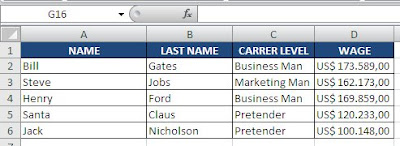
The first step is to define which column(s) will be used in the duplicated comparison. Let's ilustrate: you have a employee list. On column A is the employee name, on B his last name, on C his carrer level name and on D his montly wage. You know for a fact that someone screwed up the report and there are duplicates records -- the same employee appears more than once on the list. It's your purpose to create SERIAL NUMBER
S for your employees, but first you will need to clean-up the list.

However, you also expect to have duplicates first names in your organization, after all, we are talking about a lot of people. So to determine that th
e record is a duplicate of a previous one? You will have to join the Last Name and the First Name to create a third column. This column will be called your KEY column, and it's where we check for duplicates.


Example Sheet
In our example, the "KEY" column is the concatenation of both NAME and SERIAL NUMBER. We create this in the E column. To concatenate both values, you can either use the CONCATENATE function or just the join operator (&); I preffer the latter, so your cells should have the following formula: 

=B2&A2

...which is self-explanatory. This column should not have duplicates -- and this is how you ensure that:
  • Sort your KEY column (E) in Ascending Order. 
  • Create another column, labelled DUPLICATED?, which should compare if a given item from column E is equal to the previous one, using the formula:

    =E2=E1

    Resulting in true for whatever lines are duplicates from the first one.
  • No you can filter you sheet to select only duplicated lines:
Before filtering...


...and after filtering.
  • Now, all you have to do is exclude the duplicated lines. To do this, select the first line (in the example, click on "Henry"), then, holding both CTRL and SHIFT, press "down" once, which should select all cells in A. Now, hold SHIFT only and press "space". This will select the whole line (even empty cells). Right-click the selecion and choose "Delete Row". 
  • Clear the filter and the duplicated will have disappeared.
That's all for this tip. It's quite easy to do this when after you did it two or three times, and it's handy. Users of Excel 2007 might even preffer to remove duplicates this way since you will see exactly what you are removing.

Next week I will post another tip, this time on coloring odd lines in a document.

Saturday, September 6, 2008

Microsoft Always Think We Default To "Stupid"

While I write my next real blog post, a minor rant (and something to remember when you are developing an application):

Microsoft newer products, since the complete widespreading of Internet, which would begin by the end of the last century, are PARANOID. First of all, they assume the user is a complety newbie that will do everything wrong. Secondly, they assume everything outside (and, sometimes, inside) the computer that can be harmful will be. In other words, MS has closed all doors to your computer that they could imagine, so that no hacker could exploit them. 

Of course, all this paranoia accomplished nothing. MS browsers, OSes and Applications are still vunerable to exploits. But it also made the life of the user (us!) much more difficult -- we have to click a lot of pop-ups to let our applications make anything deemed harmful, like downloading a file from the internet or modifying the system register. But today, I've come to the best example of how this untrusting paranoia can be paradoxal:

I use MS Project server on my projects and today I decided to try to integrate it with my Outlook 2007. So I navigate to the Project portal and browse to the web page where I can download the plugin. Naturally, this is a ActiveX plugin that is unsafe accordingly to Microsoft, so when I click the button, I get this message box:

Now, MS asks me to disable all that security paranoia, and just be careful. See the deadlock they've created?